
Help & Support — Backlinktor
New to Backlinktor? Follow each section A to Z — from account setup to domain monitoring, backlink rechecks, Moz DA / contact enrichment, billing, and API access. Screenshots are captured from the live app.
Quick start path
Register → Overview → Add domain → Find backlinks → Recheck / Moz DA / Contacts → Export CSV → Pricing & Subscription
Sign In & Sign Up
Create a free account to monitor domains, track referring pages, and manage your plan credits.
1Start with your email
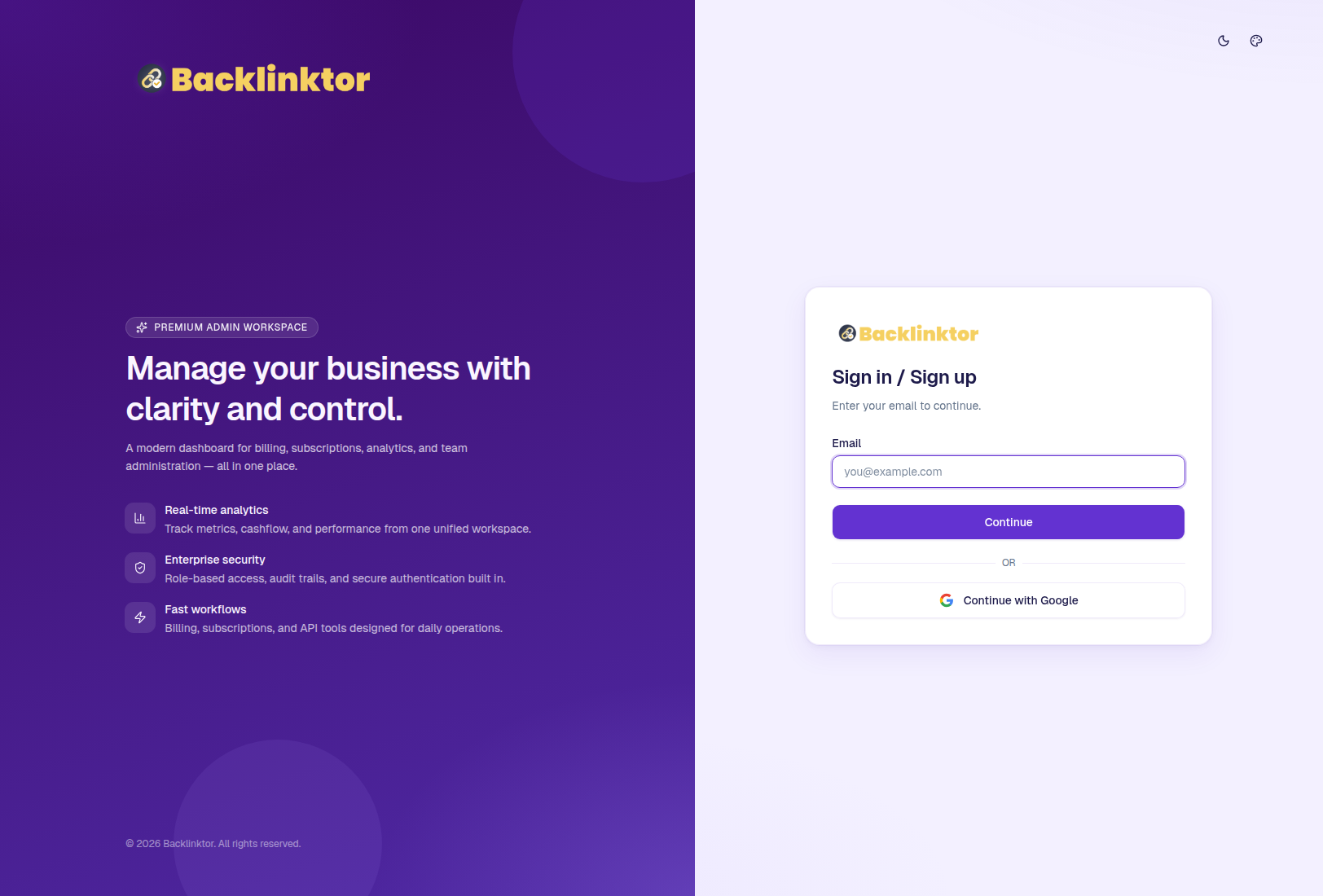
- Open https://app.backlinktor.com/login.
- Enter your email address on the Sign in / Sign up screen.
- Click Continue. Backlinktor checks whether the email already has an account.
- Optionally use Continue with Google for one-click Google OAuth.
2Create your account (new email)
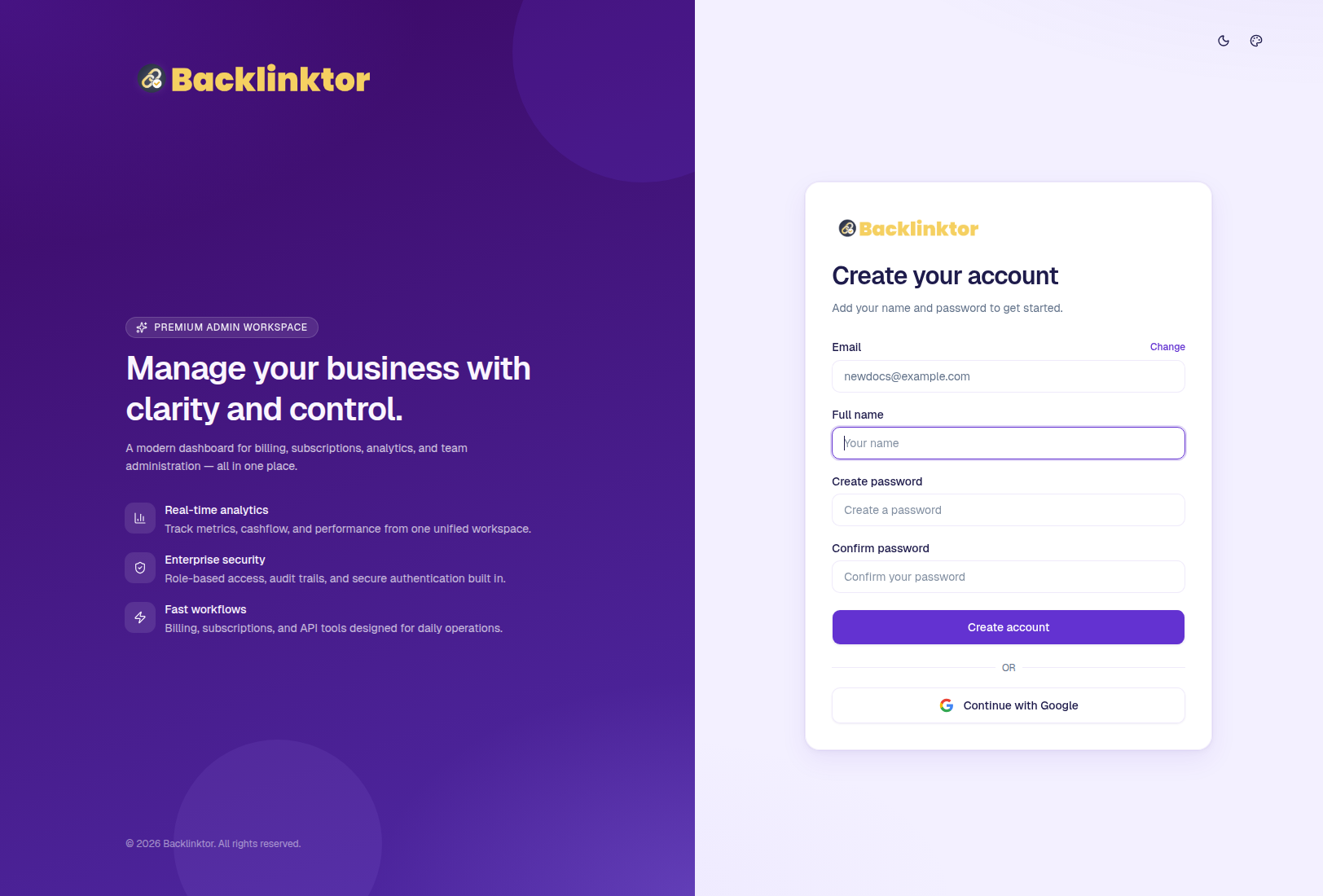
- If the email is new, you are taken to the registration form with your email pre-filled.
- Enter your full name, create a password (minimum 8 characters), and confirm it.
- Click Create account to finish signup.
- Verify your email if prompted — check inbox/spam for the verification message.
3Log in with password
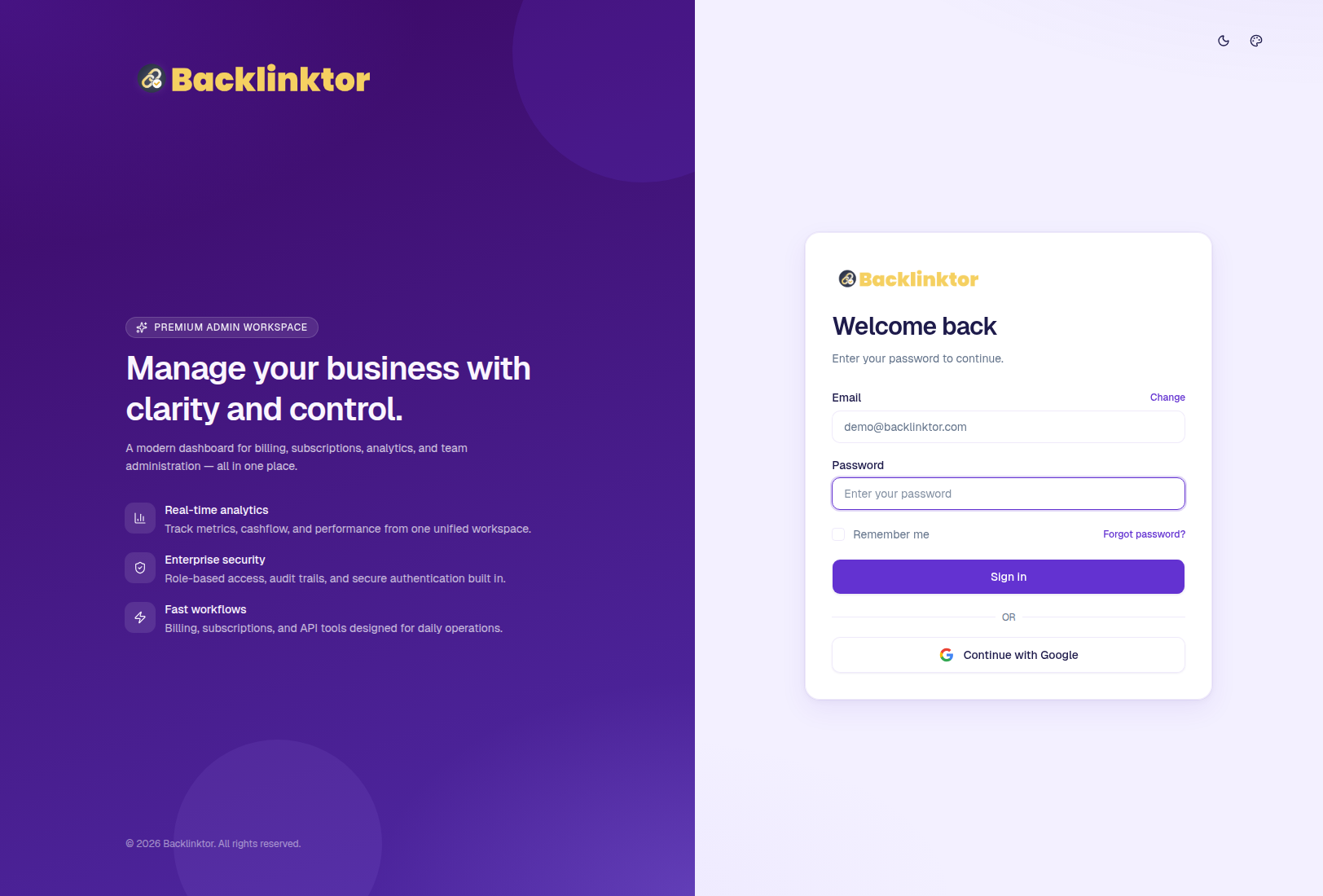
- If the email already exists, Backlinktor opens the password step.
- Enter your password and click Sign in.
- Use Forgot password? if you need a reset link.
- After a successful login you land on the Overview dashboard.
Overview Dashboard
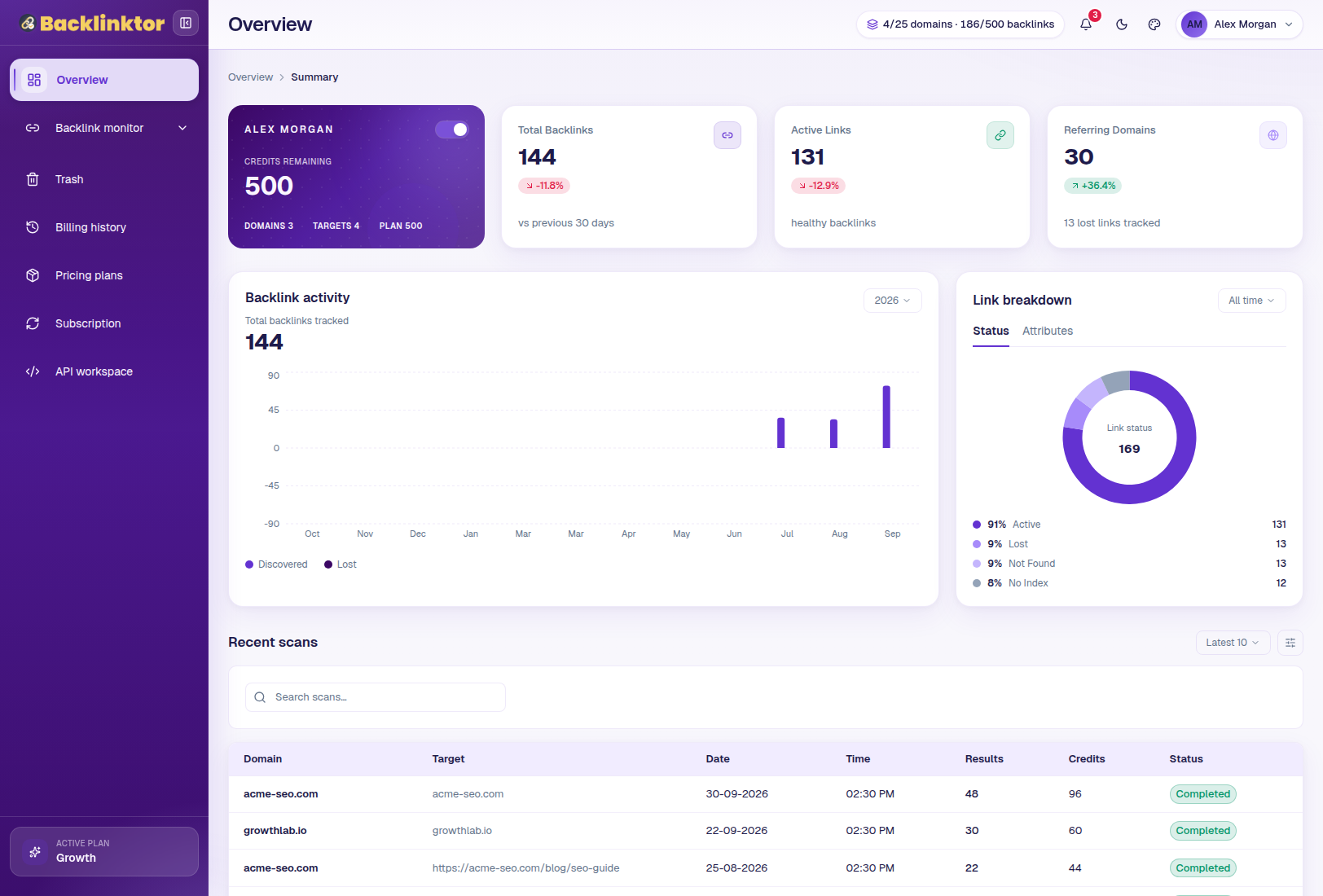
Overview is your home screen after login. It summarizes credits, domains, backlink health, and recent scans.
1What you see on Overview
- Workspace card — your name, remaining credits, domain/target counts, and plan allocation.
- Stat cards — total backlinks, active links, and referring domains with 30-day trends.
- Backlink activity chart — discovered vs lost backlinks by month.
- Link breakdown — active, lost, not found, and noindex mix.
- Recent scans — latest completed searches with result counts and status.
- Topbar usage pill shows live domains / backlinks quota (e.g. 4/25 domains · 186/500 backlinks).
Tips
- Use the sidebar Active plan footer to see which package is currently entitling your account.
Monitored Domains
Domains are the top-level containers for everything you monitor. Each domain can have multiple tracked targets and scans.
1Open the domains list
- In the sidebar, expand Backlink monitor → click Domains.
- Or go to /monitor-backlinks/domains.
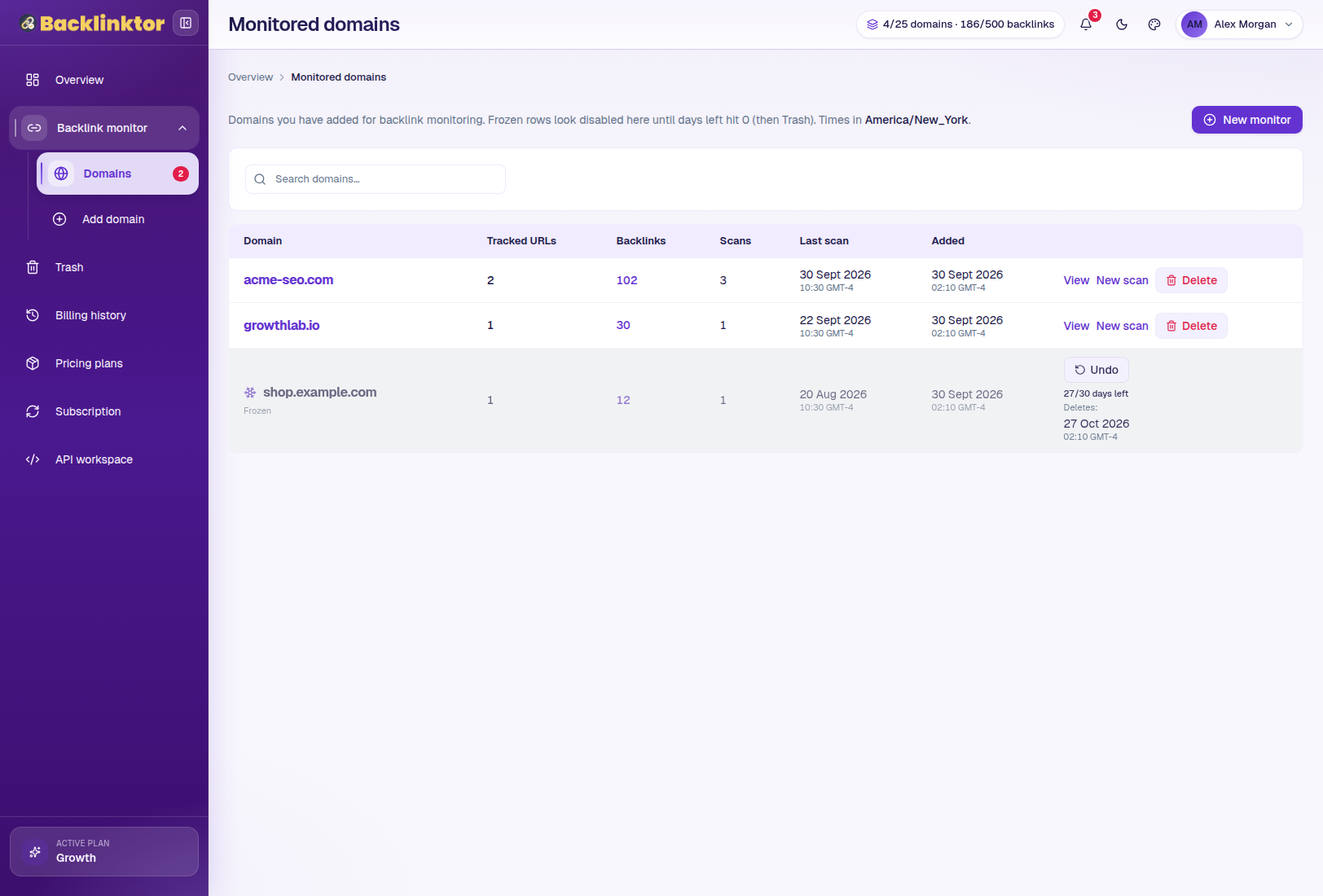
- Search domains by name, review tracked URLs, backlink counts, and last scan time.
- Use View to open a domain, New scan to start another search, or Delete to remove it.
- Frozen rows appear dimmed with days remaining — undo before they purge into Trash.
Add Domain / New Scan
Start a new monitor by choosing a domain (or creating one), entering a track target, and selecting match mode.
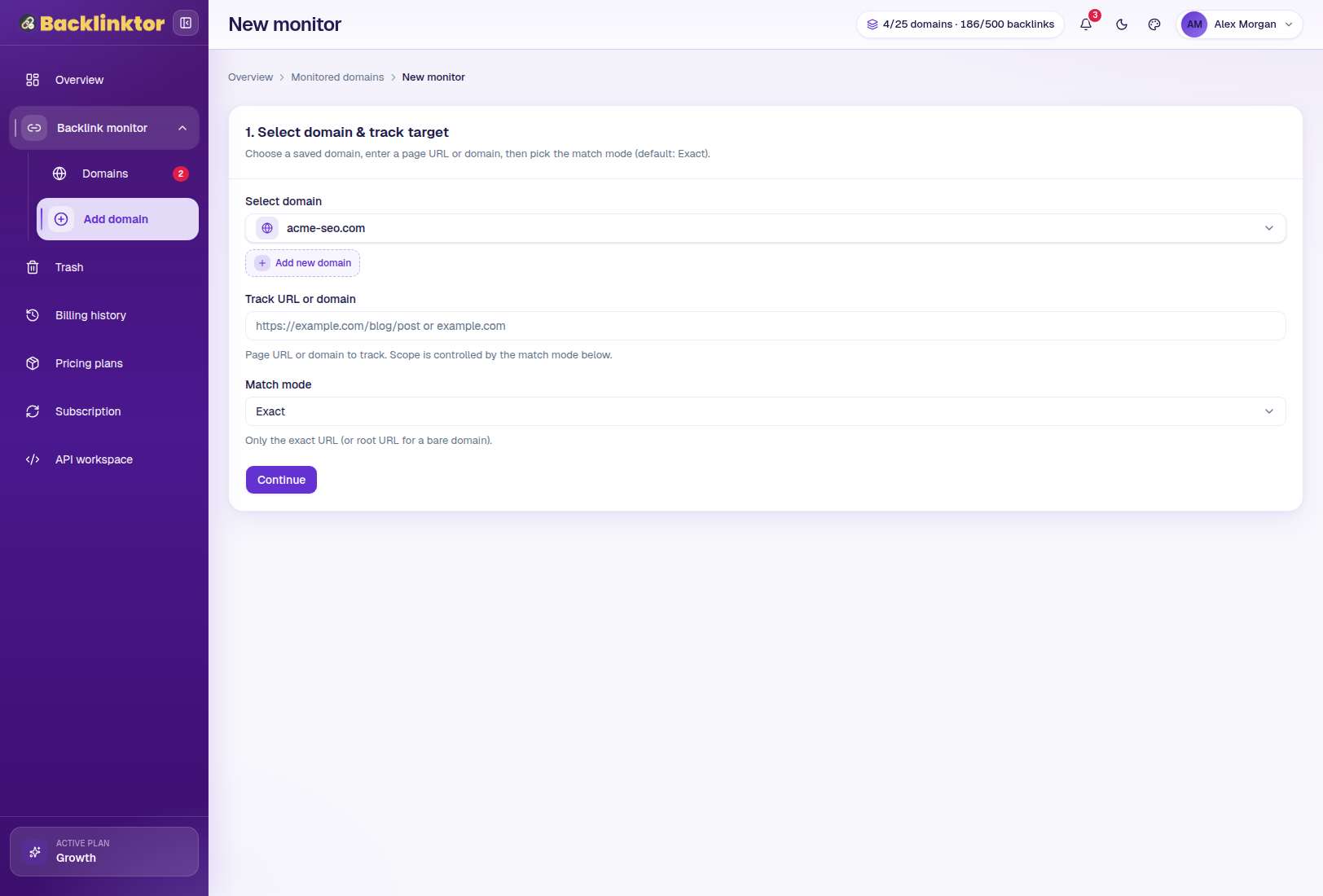
1Select domain & track target
- Go to Backlink monitor → Add domain (or click + New monitor on the domains page).
- Pick an existing domain from the dropdown, or click Add new domain.
- Enter a page URL or domain to track (e.g.
example.comor a specific blog URL). - Choose Match mode — Exact, Domain, or other Ahrefs modes shown in the selector.
- Click Continue to configure filters and run the find-backlinks step.
Tips
- Exact mode tracks one URL; domain mode finds referring pages across the whole site.
- Each new referring page you keep consumes plan backlink credits — watch the topbar quota.
Domain Detail
Inside a domain you manage tracked targets, past scans, schedules, and jump into results.
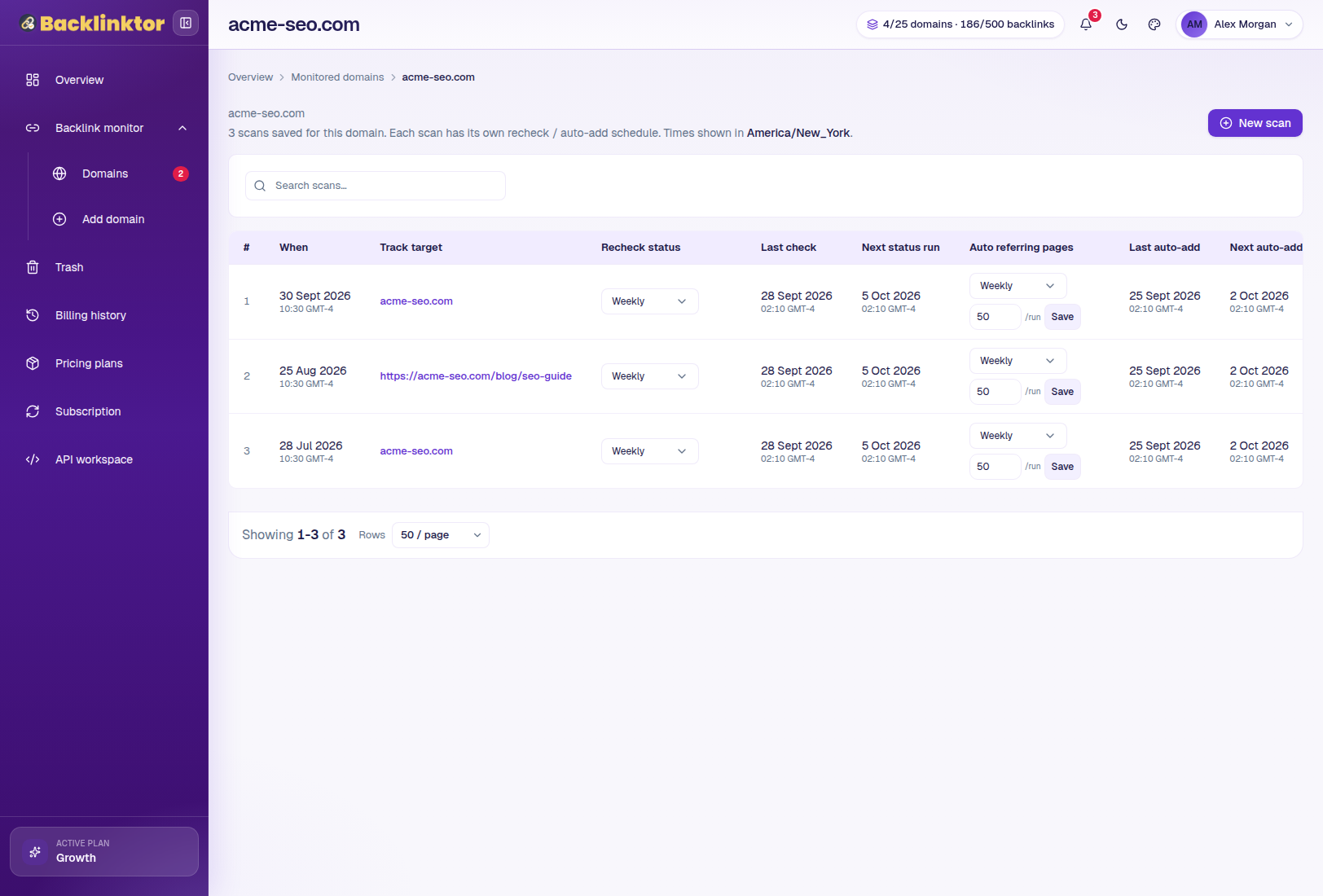
1Browse targets and scans
- Open any domain with View from the domains list.
- Review tracked targets (domain-level or page-level) and their scan history.
- Open a completed scan to see the full Backlink results table.
- Adjust recheck / auto-add schedules from the target controls when available.
Backlink Results
The results table is the core workspace — recheck live status, enrich Moz DA & contacts, filter rows, and export CSV.
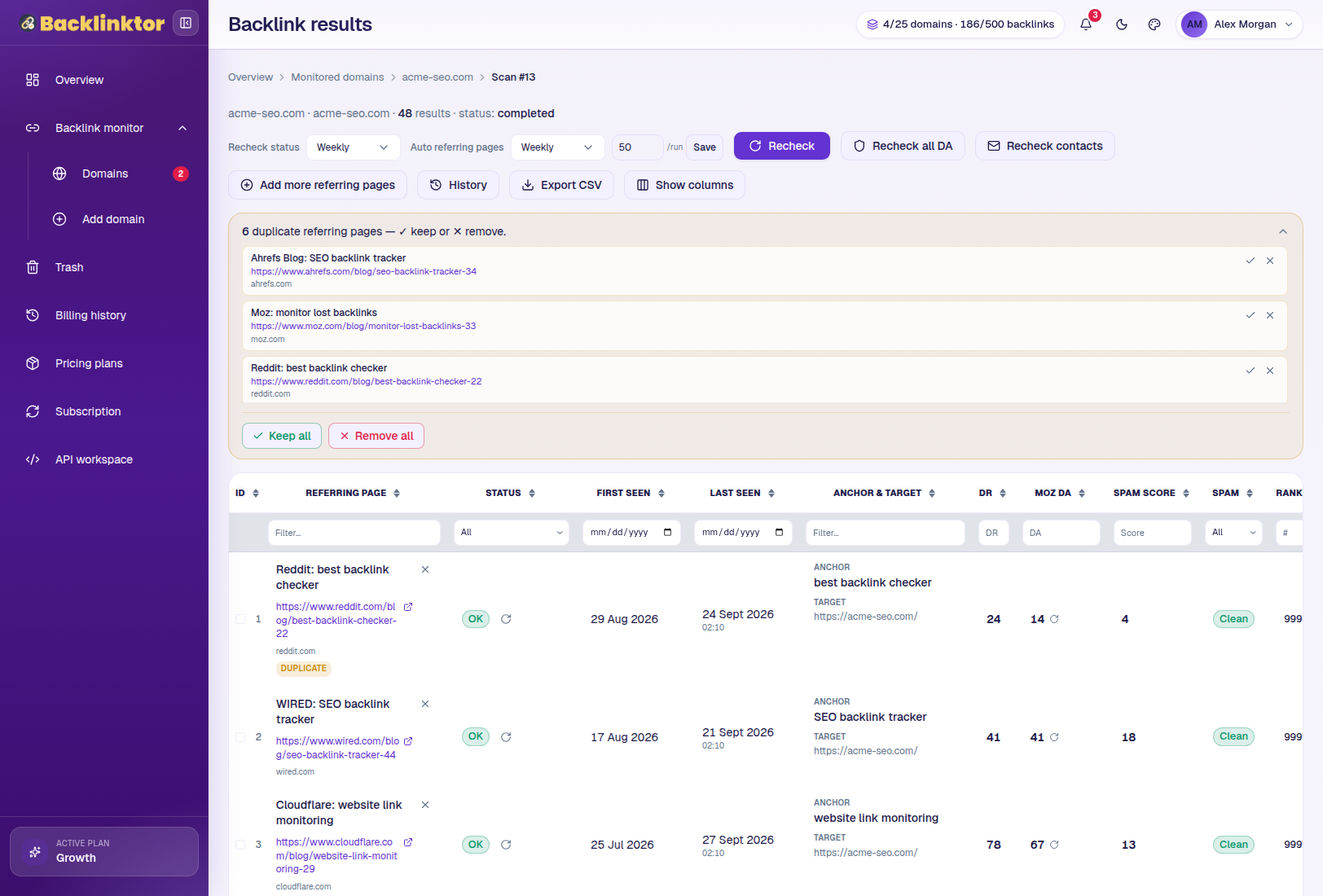
1Read the results workspace
- Open a completed scan from Domain detail (breadcrumb: Domains → domain → Scan #ID).
- See referring pages with status (OK / Missing / Page down), first/last seen, anchor, DR, Moz DA, spam score, and more.
- Duplicate referring pages appear in a banner — choose Keep all or Remove all.
- Use column filters and Show columns to customize the table.
2Recheck, Moz DA, and contacts
- Click Recheck to verify whether links still exist on the live pages (uses browser fetch / Bright Data as configured).
- Set Recheck status schedule (e.g. Weekly) so cron can recheck automatically.
- Enable Auto referring pages to periodically discover and add new backlinks.
- Click Recheck all DA to refresh Moz Domain Authority / spam scores.
- Click Recheck contacts to find publisher emails/phones for outreach.
- Use per-row action icons to recheck a single referring page.
3Add more, export, and trash rows
- + Add more referring pages fetches additional Ahrefs rows within your credit limit.
- Export CSV downloads the current result set for spreadsheets or CRM import.
- Select rows and move them to Trash if you no longer want to monitor them.
- Open History for past recheck runs on this target.
Tips
- Missing / page-down statuses are the first place to look when links disappear.
- Contact enrichment is best after Moz DA so you prioritize high-authority publishers.
Recheck History
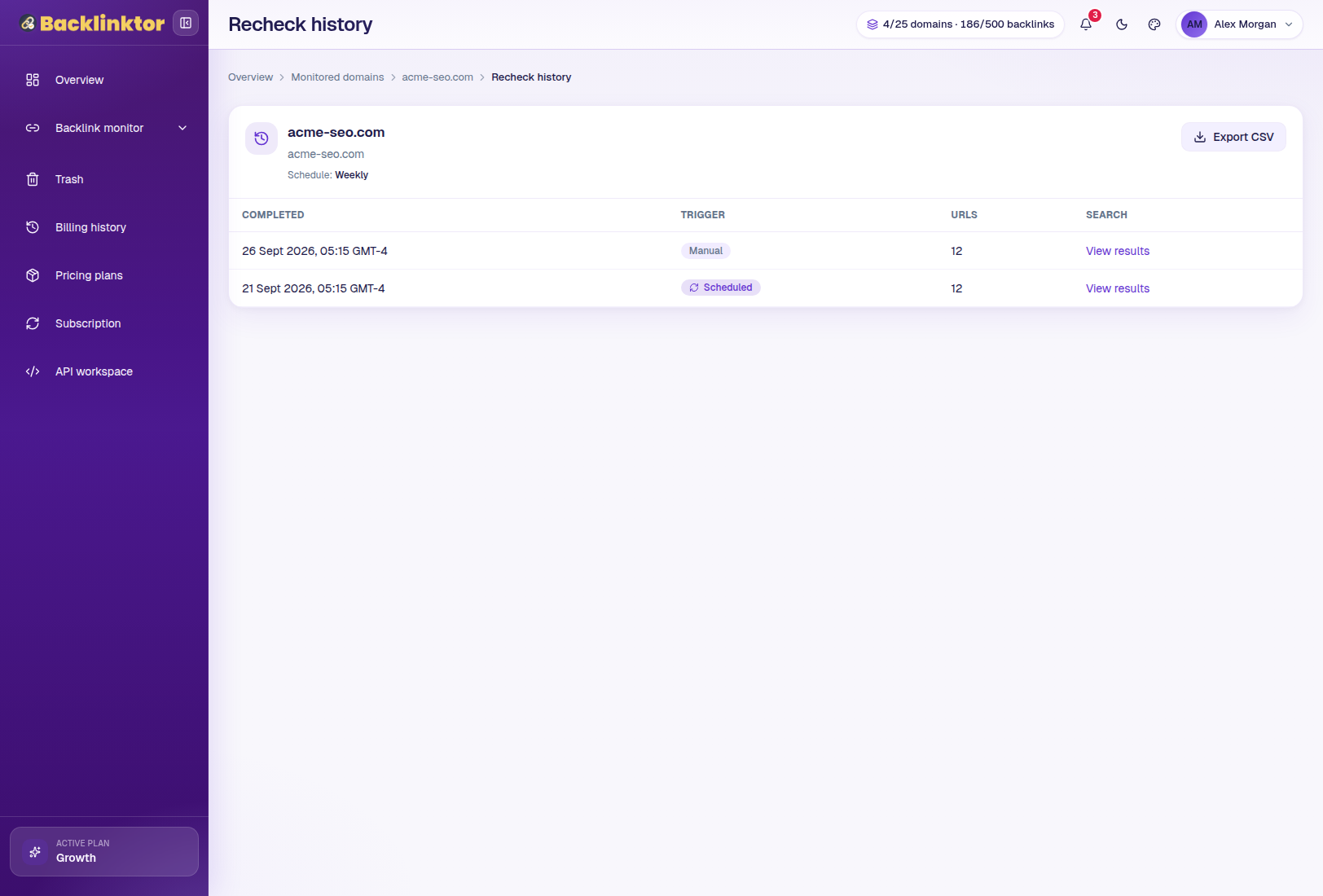
Every manual or scheduled recheck is logged so you can audit what changed and when.
1Review past runs
- From Results, click History (or open the target’s recheck-history URL).
- Browse runs by trigger type — manual vs cron.
- Inspect per-URL outcomes (OK, Missing, Page down) and notes.
- Export history when you need an offline audit trail.
Trash
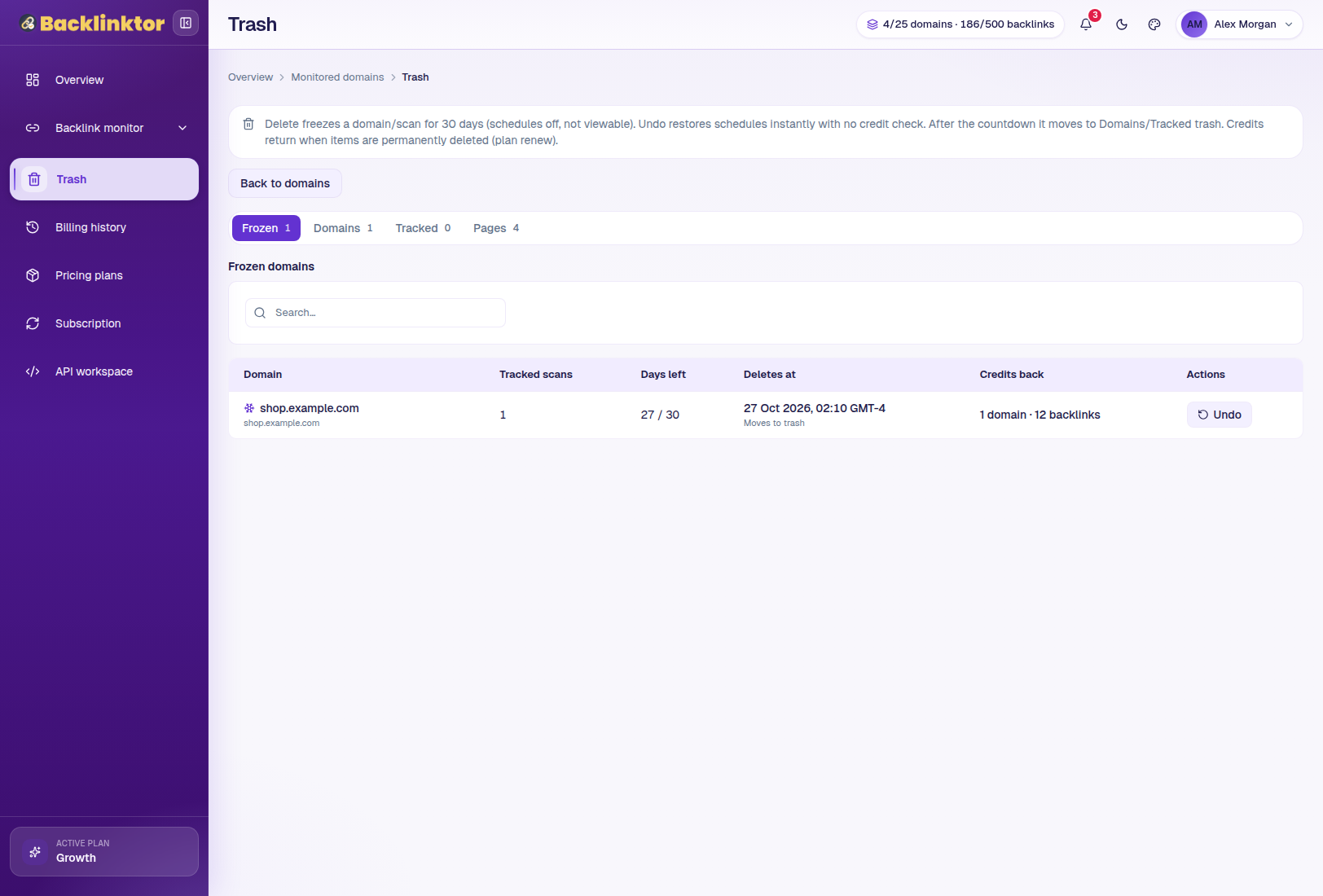
Soft-deleted domains, tracked searches, and individual backlink rows land here before permanent purge.
1Restore or purge
- Open Trash from the sidebar.
- Switch tabs for frozen domains/searches vs trashed result rows.
- Click Restore / Undo to bring items back into active monitoring.
- Frozen domains show a countdown — act before the purge date.
Pricing Plans
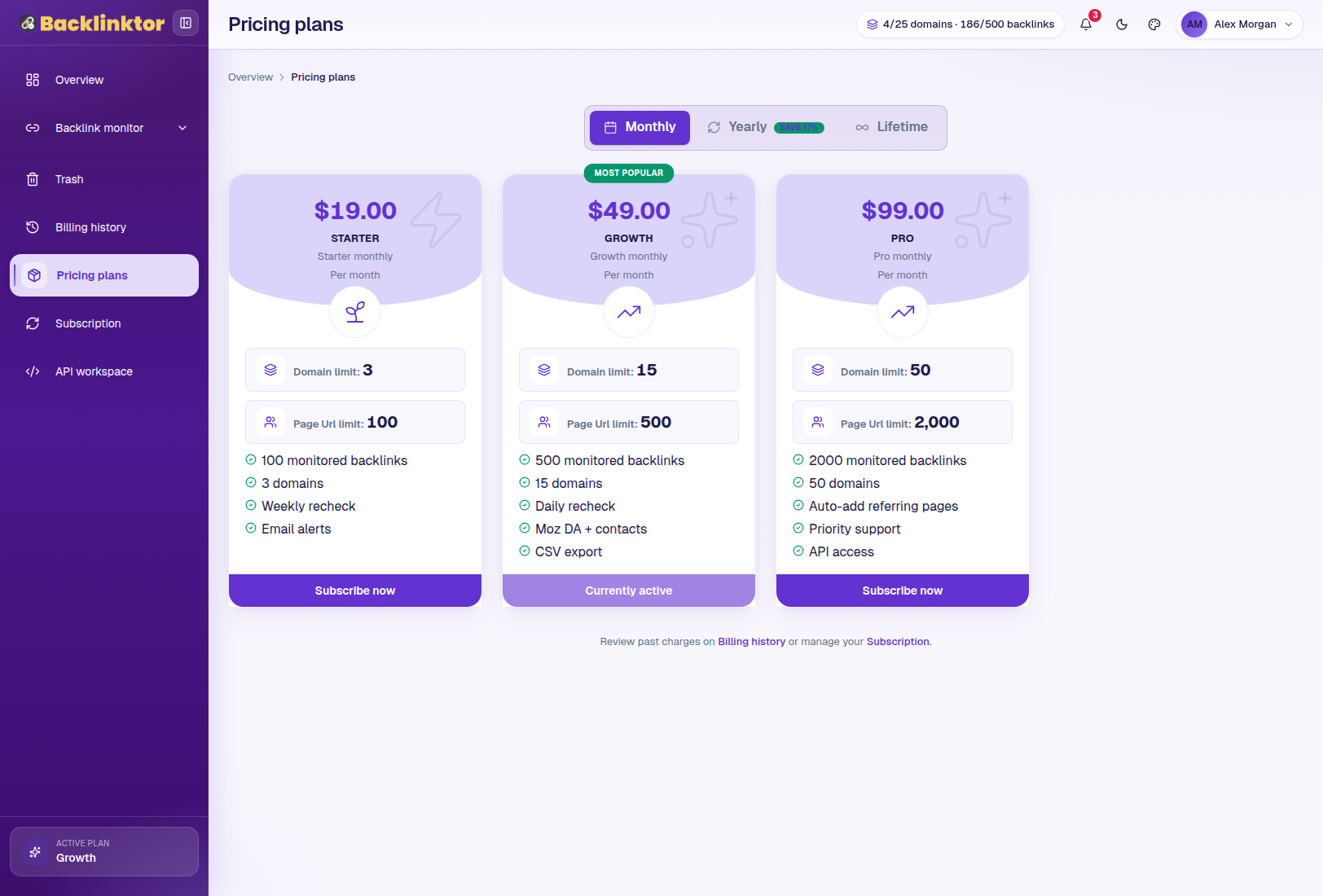
Plans unlock domain limits, monitored backlink credits, recheck frequency, Moz DA, contacts, and API access.
1Compare packages
- Open Pricing plans from the sidebar (or Upgrade in the UI when shown).
- Switch tabs: Monthly, Yearly (save ~20%), or Lifetime.
- Compare Starter, Growth, and Pro — domains, page URL limits, monitored backlinks, and features.
- The Most popular badge highlights the recommended Growth plan.
- Your current plan shows Currently active instead of Subscribe.
2Subscribe via Stripe
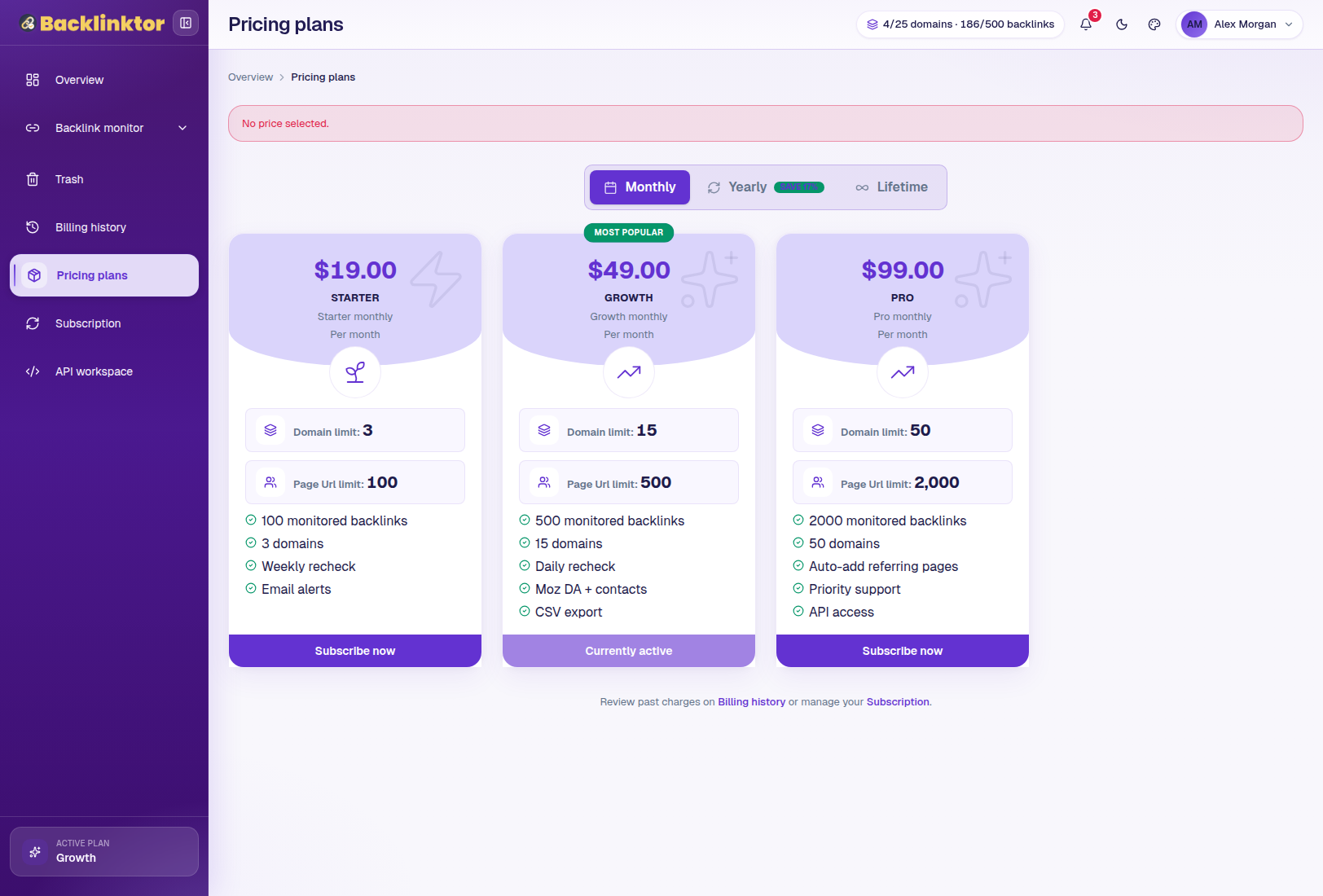
- Click Subscribe now on the plan you want.
- Complete checkout securely with Stripe (card payment).
- After payment, credits and domain limits update on your account immediately.
- Guests can also start from the public /subscribe page, then finish Account Setup with OTP.
Subscription
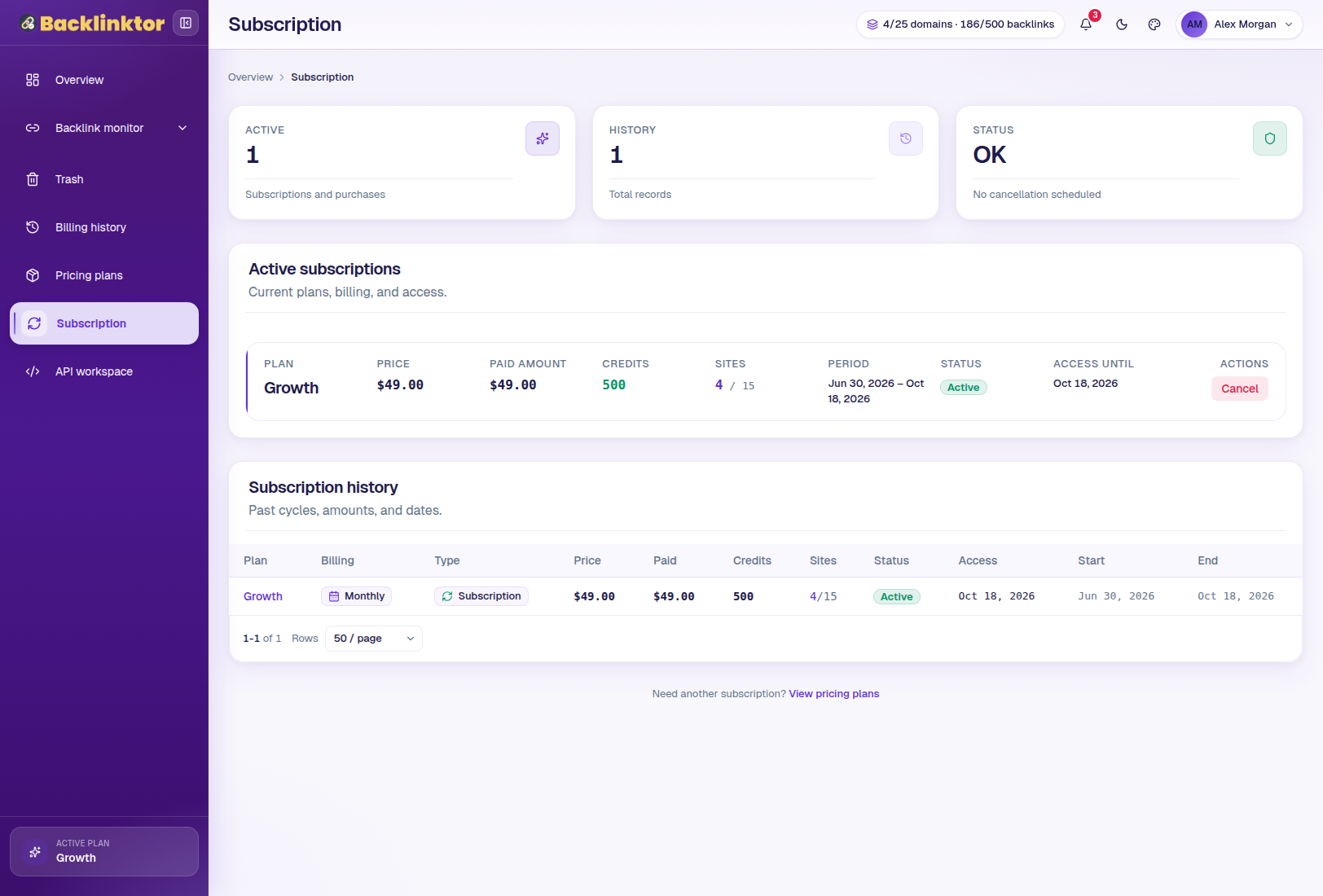
Manage your active entitlement, credit balance, and renewal status.
1View plan status
- Open Subscription from the sidebar.
- See the active package name, status, and period end / expiry date.
- Review remaining credits and how they map to monitored backlinks.
- Upgrade from Pricing plans anytime — multi-purchase entitlements are supported.
Billing History
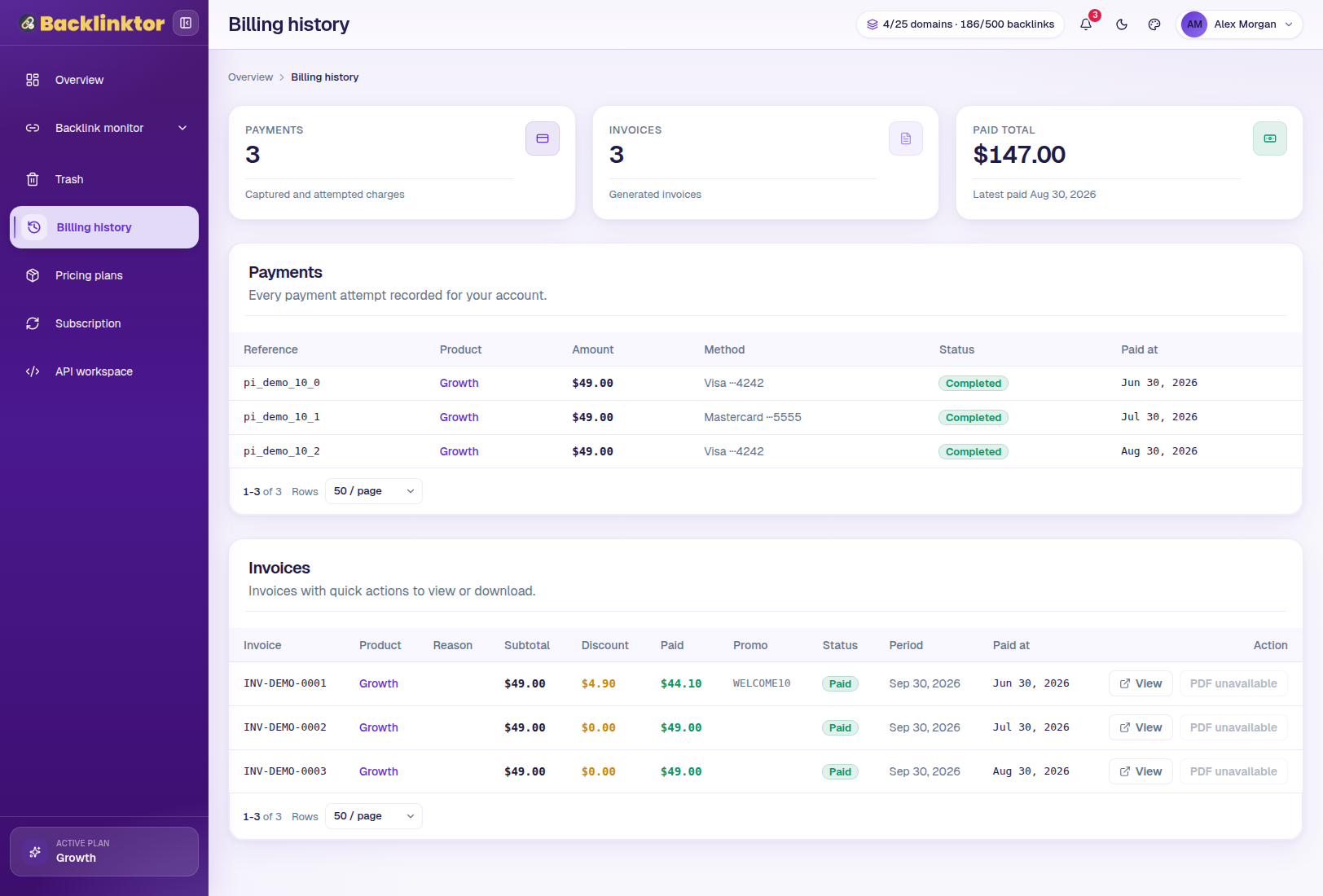
A ledger of payments and invoices for your workspace — useful for accounting and support requests.
1Review charges & invoices
- Open Billing history from the sidebar.
- Browse payments with date, amount, status, and method (e.g. Visa ···4242).
- Open linked invoices for downloadable / Stripe-hosted receipts when available.
- Contact support with the invoice number if you need a billing correction.
API Workspace
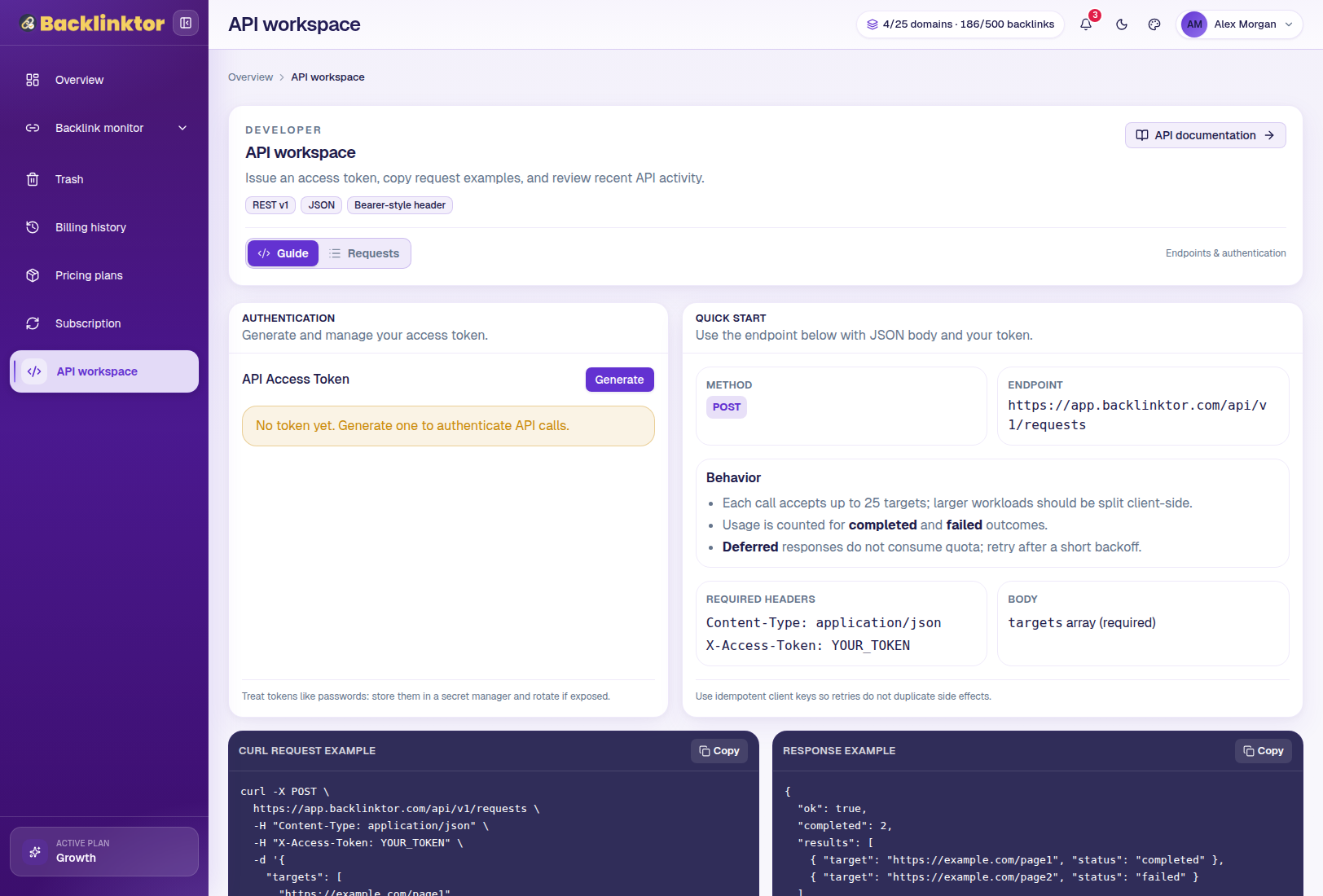
Integrate Backlinktor into your own tools. Higher plans unlock API access for automation.
1Open the API workspace
- Click API workspace in the sidebar.
- Review available endpoints, authentication notes, and usage guidance.
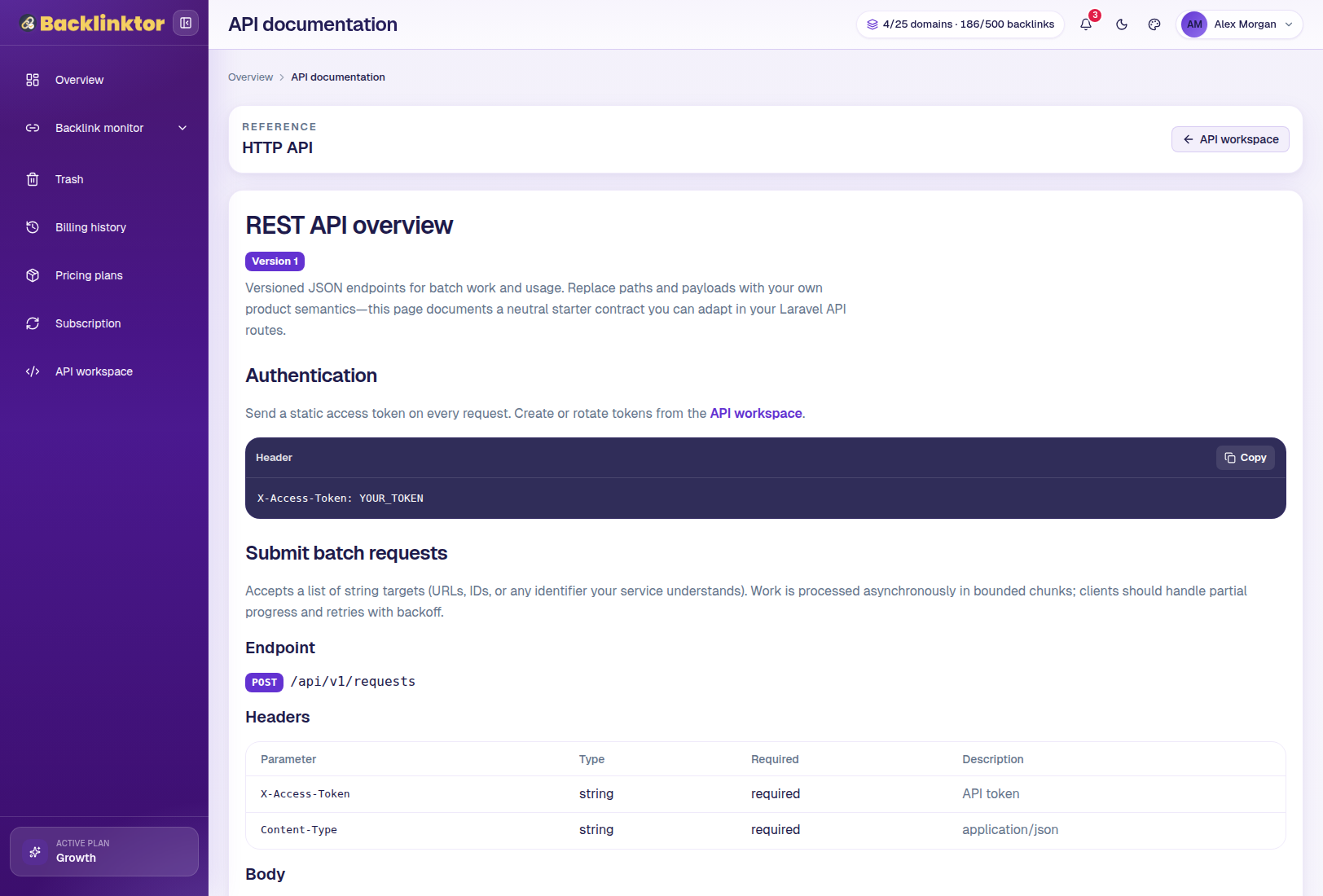
- Open API documentation for detailed request/response reference.
Account Settings
Update profile details, notification preferences, and the visual theme of your dashboard.
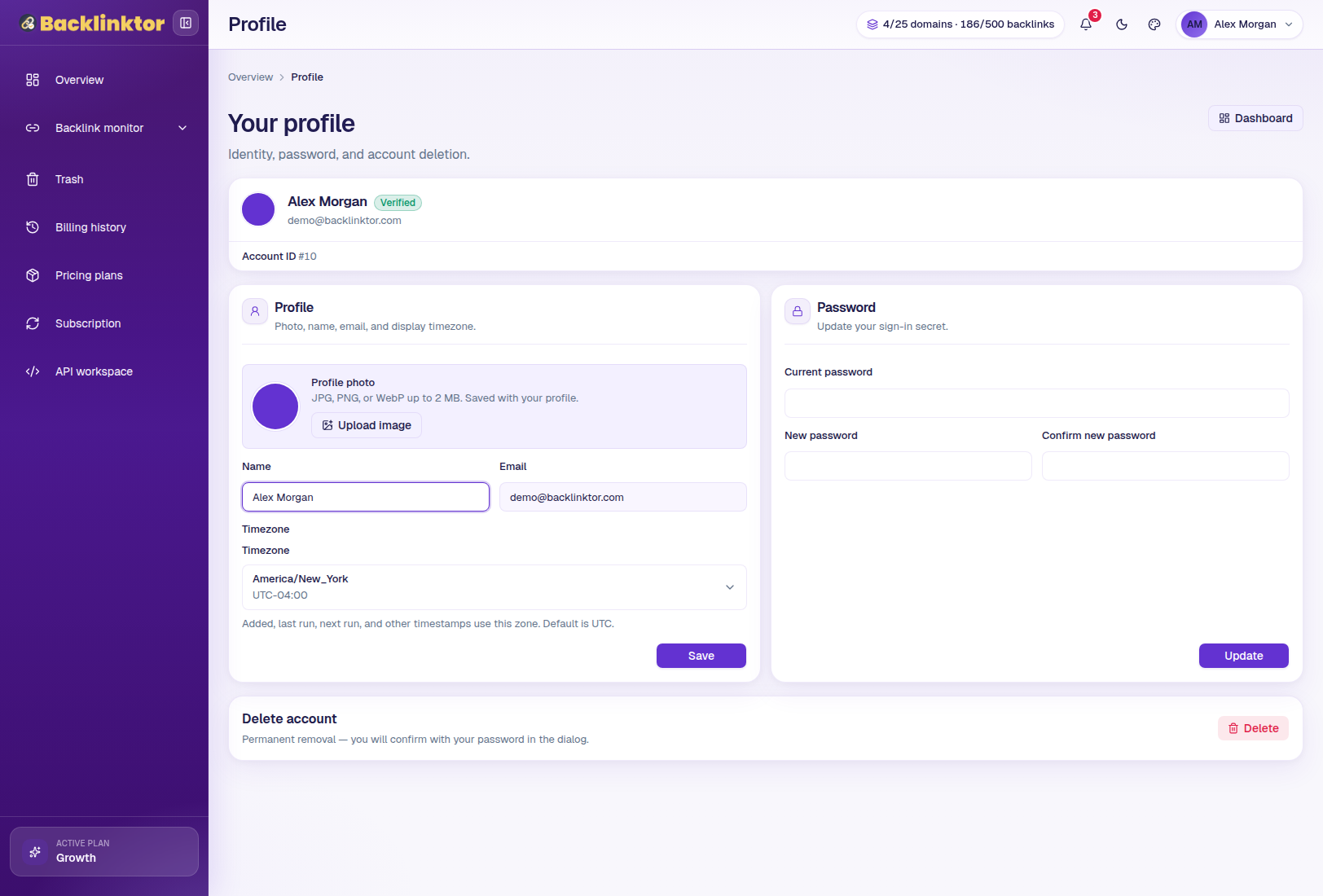
1Profile
- Open the user menu (your name in the topbar) → Profile.
- Update name, email, password, and timezone.
- Timezone affects how dates appear across scans, billing, and schedules.
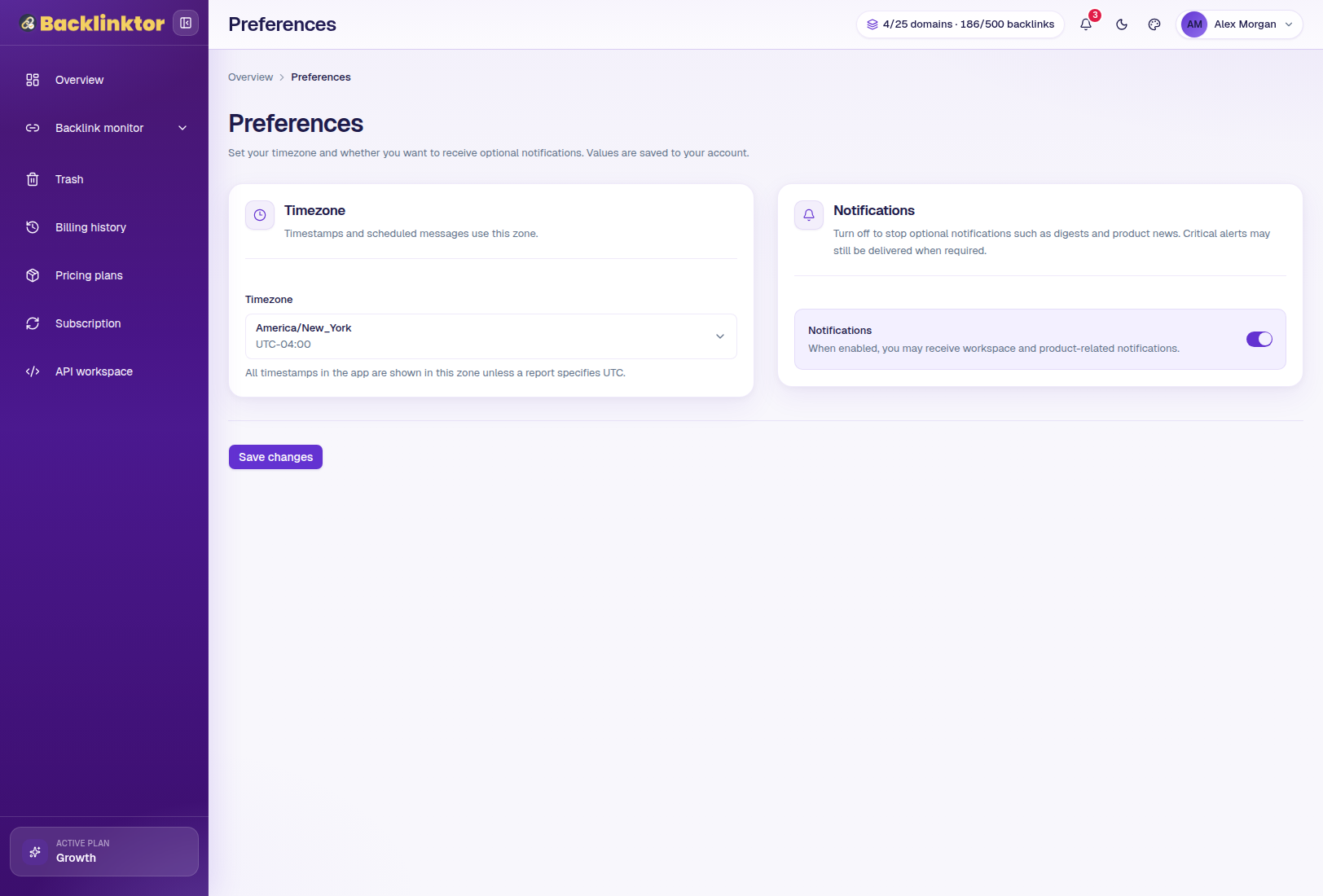
2Preferences
- From the user menu, open Preferences.
- Configure locale, week start, date format, and email digest / product update toggles.
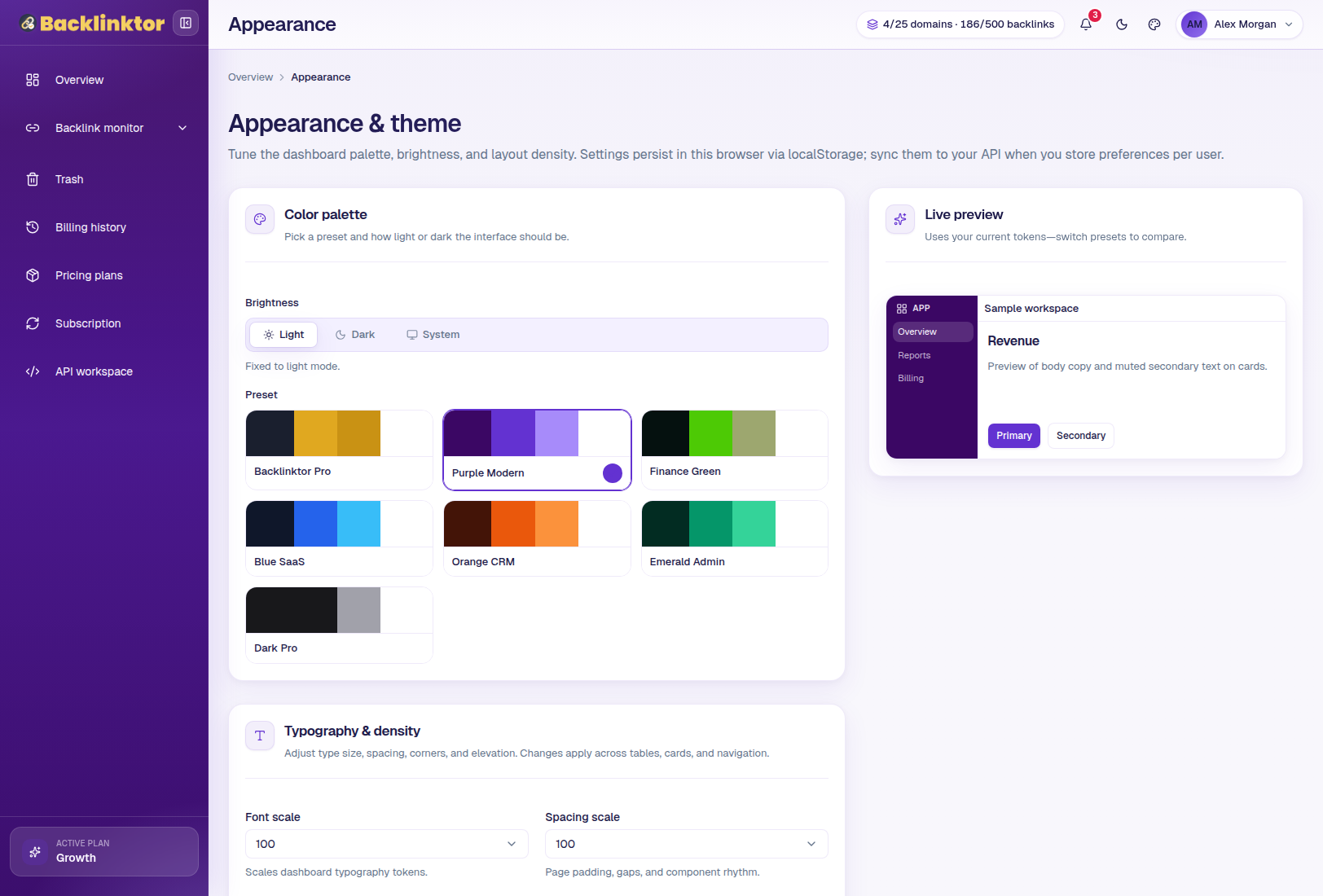
3Appearance
- Open Appearance from the user menu (or the moon / theme controls).
- Switch light/dark mode and color themes (including Backlinktor Pro navy + gold).
- Theme choices persist in your browser for the next visit.
Still need help?
Email us at support@backlinktor.com with your account email, the page URL, and a screenshot of the issue. Include invoice numbers for billing questions.